 SUPPORT


 3EX United States
 Blog
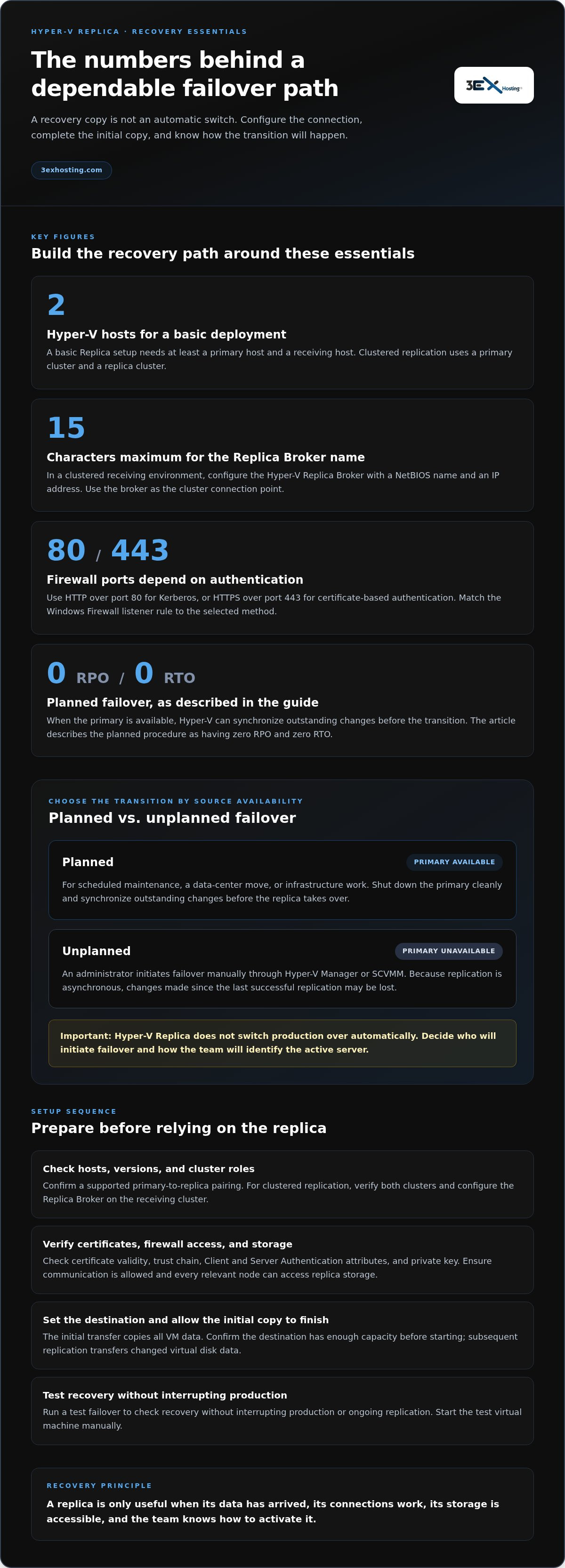
Replication creates a recovery copy, but it does not switch production over automatically. An administrator must initiate failover. Hyper-V replication and failover use asynchronous data transfer, so an unplanned switch may lose changes made since the last successful replication. A basic setup requires at least two Hyper-V hosts.
That makes the configuration and recovery procedure equally important. A replica that has not received data, cannot communicate through the firewall, or cannot access its storage may not be ready when needed.
This guide explains how to configure Hyper-V Replica, choose authentication and firewall settings, and transfer the initial data. It also covers the roles of cluster storage and the Hyper-V Replica Broker, how to test failover without interrupting production, and the difference between planned and unplanned failover. Follow the steps in sequence to build a recovery path your team can test and operate with confidence.
Key Takeaways
- Prepare clustered hosts with a Replica Broker, valid authentication certificates, accessible shared storage, and enough capacity for replicated workloads.
- Choose planned failover for a controlled transition and unplanned failover when the primary workload is unavailable; asynchronous replication can leave recent changes unsynchronized.
- Configure the replication interval and destination, then allow the initial copy to complete before relying on the replica.
- Run a test failover to check recovery without interrupting production or ongoing replication, and start the test VM manually.
- Match the Windows Firewall listener rule to your authentication method: HTTP over port 80 for Kerberos or HTTPS over port 443 for certificate-based authentication.
Hyper-V Replica prerequisites for failover clusters
Apply the licensing terms for each Windows Server edition and deployment. For version compatibility, pair primary and replica hosts only in a supported Hyper-V configuration.
Verify primary and replica cluster prerequisites
Confirm that both the primary and replica sites have Hyper-V failover clusters, whether they share a location or operate at separate sites. Check that every cluster node can access the storage for replicated virtual hard disks and that the replica cluster has enough capacity for its workloads. If the clusters are at separate sites, allow communication through both sites’ firewalls.
Common setup problems include inaccessible storage, blocked connections, and certificate errors. Check that certificates have not expired, chain to a valid root certificate, include Client and Server Authentication Enhanced Key Usage attributes, and have an associated private key. On a clustered sending side, each primary host also needs a certificate for the Replica Broker role FQDN.
Confirm supported host and cluster configurations
Choose a configuration with at least two Hyper-V hosts for a basic Replica deployment. For clustered replication, use a primary cluster and a replica cluster; they can be at the same site or at separate geographical locations. Plan separate storage on each replica host, because replication is asynchronous and each host needs its own storage for replicated virtual machines.
Before configuring the connection, confirm that the host versions support the intended primary-to-replica pairing. Follow the licensing terms for the Windows Server editions and deployments in use rather than assuming replication changes those requirements. Record host roles and storage paths to keep settings consistent across cluster nodes.
Plan setup on single hosts and clusters
For single-host replication, configure a primary Hyper-V host and a receiving host, then select authentication, a port, and a storage destination. For clustered workloads, configure the Replica Broker on the receiving cluster and use its connection point when setting up replication. Confirm that the destination has enough capacity before starting the initial copy, which transfers all VM data.
After the initial transfer, Hyper-V replicates changed virtual disk data. In a cluster, make sure the destination storage remains accessible to every node that may own the replica VM. Keep host, broker, authentication, firewall, and storage settings aligned. A mismatch can prevent replication from starting or continuing.
Set up the Replica Broker in clustered environments
Configure a Hyper-V Replica Broker role on the replica cluster and give it a NetBIOS name and an IP address. Keep the broker name within the 15-character limit. Its IP address can be static on the management subnet, or the subnet can provide DHCP. Use the broker as the cluster connection point when configuring replication settings.
Choose the authentication method and port in the cluster’s Replica settings. If the sending VM belongs to a cluster, issue each primary host a certificate for the broker role FQDN. Then confirm all nodes can reach the broker and access replica storage. These checks help identify certificate, name-resolution, connectivity, and storage errors before workloads depend on the replica.
Planned and unplanned failover
Use planned failover for a controlled transition while the primary server is available. Use unplanned failover when it is not. The right method depends on whether the source VM can synchronize its latest changes.
Review planned failover scenarios
Use planned failover for scheduled maintenance, a data-center move, or infrastructure work that requires production to run from the replica temporarily. In these situations, the primary virtual machine can shut down cleanly while its connection to the replica remains available. Hyper-V can synchronize outstanding changes before the transition, helping keep the replica current.
Do not use the planned procedure if the primary host is already unavailable. Instead, an administrator initiates unplanned failover manually through Hyper-V Manager or System Center Virtual Machine Manager (SCVMM). Hyper-V Replica does not switch virtual machines automatically. A sound Hyper-V replication and failover plan identifies who makes that decision and how the team determines which server is active.
Perform a planned failover
Stop the primary virtual machine before preparing planned failover with PowerShell. Run
Start-VMFailover -VMName '<VM Name>' -Prepare, then initiate failover on the replica. Hyper-V synchronizes outstanding changes before shutting down the source VM. The planned procedure is described as having zero RPO and zero RTO.After the replica takes over, confirm the intended workload is running before redirecting dependent connections. Check that users and applications can reach the active VM, and prevent the former primary from serving production independently. Once the original server is restored, reverse replication can return the latest data. Run
Set-VMReplication -VMName '<VMName>' -Reverse, then verify the new replication direction before moving production back.Assess failover security and data-loss risks
Before activating a replica, review authentication and access controls, especially if the primary and recovery systems are at separate sites. Confirm the replica uses the expected identity and network connections. Prevent the former primary from restarting as an independent production VM. Two active copies can accept conflicting writes and leave applications with inconsistent data.
For an unplanned event, compare the replica’s last successful cycle with the outage time. Asynchronous replication cannot guarantee zero data loss. Changes made after the last saved cycle may be missing, with potential loss ranging from a few seconds to several minutes. Hyper-V replication and failover procedures should specify how the team checks data consistency after recovery. Configure the failed-over VM as a replica using
Set-VMReplication -VMName '<VM Name>' -AsReplica, then start initial replication withStart-VMInitialReplication -VMName '<VM Name>'.
Replication setup and data transfer
Configure the primary and replica endpoints before enabling replication for a virtual machine. In a failover cluster, use the Replica Broker as the receiving connection point.
- Prepare the replica server and choose its connection settings. In Hyper-V settings, enable the server to receive replication, then select authentication and its matching port. Kerberos uses HTTP over port 80 by default; certificate-based authentication uses HTTPS over port 443. On a failover cluster, configure those settings for the replica broker, not just an individual node.
Confirm that the primary host can reach the receiving endpoint across the network. For clustered workloads, use the broker’s configured name and address as the destination. If authentication, port, and endpoint settings do not match, the connection may fail before data transfer begins. Apply the same selected method consistently to both primary and replica configurations.
- Enable replication for the selected virtual machine from Hyper-V Manager. Choose the replica server or broker, select authentication, and set the replication interval supported by the configuration. Hyper-V Replica supports intervals of 30 seconds, 5 minutes, or 15 minutes. Select the interval according to how frequently the workload’s changes need to reach the recovery site.
Choose destination storage for the replicated virtual hard disks. Each replica host requires its own storage, and a replica cluster needs storage accessible to every node. Confirm the destination has enough capacity before starting. Each replica stays powered off during normal operation, serving as a recovery copy rather than production.
- Start initial replication and allow the full virtual machine data to transfer. This first copy includes all VM data, so completion depends on the data volume and available network throughput. Hyper-V may show the replication state as
WaitingForInitialReplicationwhile the initial transfer is pending. Treat this as a setup stage, not proof that the replica is ready.After the first transfer, Hyper-V sends changed virtual disk data during subsequent cycles. This avoids retransferring the entire VM each time. Check that replication advances beyond the waiting state and that the configured connection remains available. If the initial copy stalls, inspect connectivity, authentication, destination storage access, and available capacity.
- Validate replication settings on both the primary and replica sides before relying on the recovery copy. In a clustered setup, confirm the broker connection works through its configured name and that each eligible node can access replica storage. For example, the broker connection might succeed while inaccessible storage on a node still prevents it from hosting the VM.
Track the last successful replication cycle and the VM’s replication state. Because Hyper-V replication is asynchronous, the replica may not include changes made after that cycle. Set the replication interval to suit the workload’s recovery needs, and resolve failed cycles promptly. A successful initial transfer is only the starting point; continued replication keeps recovery data current.
Test failover
Use a test failover to validate the recovery copy without interrupting production or ongoing replication. An administrator can start the test VM when ready.
- Select the replicated virtual machine in Hyper-V Manager and start a test failover. PowerShell provides the same method with
Start-VMFailover -VMName '<VM Name>' -AsTest. This creates a separate test VM from the replica without switching production traffic or stopping the normal replication cycle.Choose a recovery point that suits the test objective. For example, use the latest available point to check current recovery readiness, or select an earlier point to validate a specific scenario. Record the VM name and selected point before starting so the administrator can distinguish the test copy from production.
- Start the test VM manually after Hyper-V creates it. Check its boot process, operating system, and expected services. A successful start confirms the VM can run from the replica data, but does not prove that every application dependency works. Test the services the business relies on, such as application access or database availability.
Review the test VM’s network configuration before connecting it to production networks. An alternative test network can help avoid an IP address conflict with the live VM. Confirm that the test machine uses the intended IP address and can reach required test dependencies. Keep production traffic directed to the primary VM throughout the exercise.
- Validate application consistency with a defined test task. For example, sign in to the recovered application and open a representative record. Compare its visible state with what is expected at the selected recovery point. Since Hyper-V Replica transfers data asynchronously, the replica may not contain changes made after its last successful cycle.
While the test is running, check the replica’s status and last replication time in Hyper-V Manager. Confirm that ongoing replication remains active and production services are available. Note missing data or failed dependencies. These results show whether recovery procedures need adjustment; a successful VM boot alone does not prove complete application recovery.
- Finish the test using Hyper-V’s stop test failover action for the selected replica. This removes the test VM and its test configuration while preserving the replica relationship. Confirm the test copy has shut down and production remains on its original VM. Do not leave an unneeded test VM running alongside production.
Document the recovery point, test network, IP address, services checked, and outcome. For example, record whether the application started and whether its test record matched expectations. Use the results to refine the next test. A repeatable procedure gives administrators a practical way to check recovery readiness while replication continues.
Windows Firewall rules for replication
Match the Windows Firewall listener rule to the authentication method configured for Hyper-V Replica. Default ports differ, so verify the selected rule on each receiving host.
Identify firewall rules for replication
On the receiving Windows Server host, open Windows Defender Firewall with Advanced Security. Find the Hyper-V Replica HTTP Listener rule for Kerberos or the HTTPS Listener rule for certificate-based authentication. Installing the Hyper-V role creates both exceptions, but Windows disables them by default. Enable only the listener that matches the configured authentication method.
For a failover cluster, check the receiving path through the replica broker and each relevant site firewall. Enabling a rule on one node does not establish connectivity through another host or site firewall. Check the rule’s enabled state and profile in Windows, then confirm its scope includes the intended primary host or network.
Configure firewall ports for replication
Use HTTP over port 80 by default when Kerberos authentication is selected. Use HTTPS over port 443 by default when certificate-based authentication is selected. Enable the corresponding Windows Firewall listener rule on the receiving server. Do not open one port while configuring Hyper-V Replica to use the other authentication method.
When primary and replica clusters are at separate sites, allow communication between them through each site’s firewall. Keep the permitted path aligned with the selected listener and replica broker connection. A host-level exception alone may not allow traffic through an intervening network firewall, so verify both endpoints and the route between them.
- Verify the configured rule before testing replication. In Windows Firewall, inspect whether the correct HTTP or HTTPS listener is enabled. Compare its port and authentication method with the Hyper-V Replica settings on the receiving host. For example, Kerberos paired with an enabled HTTPS-only listener creates a mismatch, even if port 443 is reachable.
Use Windows PowerShell or the firewall management interface to review rule status. If a connection fails, check the listener first, then confirm the matching port is allowed through site firewalls. Recheck the replica broker name and destination host used by the connection. This sequence helps distinguish a disabled local rule from a network-path or configuration mismatch.
- Retest the connection after each firewall change. Confirm the selected listener is enabled and the configured authentication method still matches. Do not enable both exceptions as a substitute for identifying the intended protocol. Focused firewall rules make later troubleshooting clearer and limit exposure to the connection Hyper-V Replica needs.
Record the chosen listener, port, authentication method, and firewall path for each replica site. Revisit those settings after Windows Server maintenance, firewall policy changes, or broker updates. For infrastructure planning around replication workloads, discuss your hosting requirements.
3EX Hosting: Full Cabinet Colocation
3EX Hosting provides Full Cabinet Colocation for organizations that need physical space for server hardware supporting a Hyper-V recovery environment. It offers a dedicated setting for your equipment while your team configures replication, storage, network connectivity, and failover procedures.
If your deployment needs a different physical layout, Private Colocation Suites and Cage Solutions datacenter provide alternatives for housing server infrastructure. Managed Cloud Hosting can suit workloads that are better placed in a managed cloud environment rather than on your own colocated hardware. The right fit depends on whether you need to house and operate physical replica servers or place workloads in a managed environment.
Contact 3EX Hosting to discuss your infrastructure requirements.
Turn your recovery design into an operating plan
A recovery design is useful when teams know who acts, which systems take priority, and how success is measured. Document decision ownership, application dependencies, and the steps for returning workloads to normal operations. Revisit the plan whenever infrastructure or business needs change. This turns Hyper-V replication and failover from a configured feature into a repeatable part of operational readiness.
Physical infrastructure choices can support that plan. 3EX Hosting offers Full Cabinet Colocation, Private Colocation Suites, and Cage Solutions datacenter for organizations housing server hardware. The appropriate arrangement depends on how your team plans to place and manage its equipment.
Discuss your infrastructure requirements with 3EX Hosting and identify a suitable next step. Contact 3EX Hosting to start the conversation.
With clear responsibilities and a practical recovery plan, your team can move forward with greater confidence.
Frequently Asked Questions
What is Hyper-V Replica and how does replication work?
Hyper-V Replica asynchronously copies virtual machine data from a primary Hyper-V host to a secondary host, creating a recovery copy. During normal operation, the replica VM remains powered off, so it does not serve users alongside the primary. If a primary server becomes unavailable, for example, an administrator can start the replica through manual failover. This supports disaster recovery, but does not replace a tested recovery plan or guarantee zero data loss.
What are Hyper-V Replica recovery point and replication frequency options?
Hyper-V Replica creates one recovery point by default. You can configure up to 24 recovery points for a VM replica at a one-hour interval, giving administrators earlier states to choose from during recovery. Supported replication intervals include 30 seconds, 5 minutes, and 15 minutes. These settings serve different purposes: the replication interval controls how often changes are sent, while recovery points preserve earlier states for restoration.
How much bandwidth and storage does Hyper-V replication require?
Bandwidth needs depend on the initial VM copy, the volume of changed virtual disk data, and how often replication runs. The initial transfer sends all VM data; later cycles send changes. Measure the workload’s change rate during normal operations before planning network capacity. Each replica host needs its own storage, with enough space for replicated workloads. Include virtual disk growth and retained recovery points in capacity planning.
How do Hyper-V replication licensing and Windows Server version requirements vary?
Apply the licensing terms for the Windows Server editions and deployments in use. Pair primary and replica hosts only in a supported Hyper-V configuration.